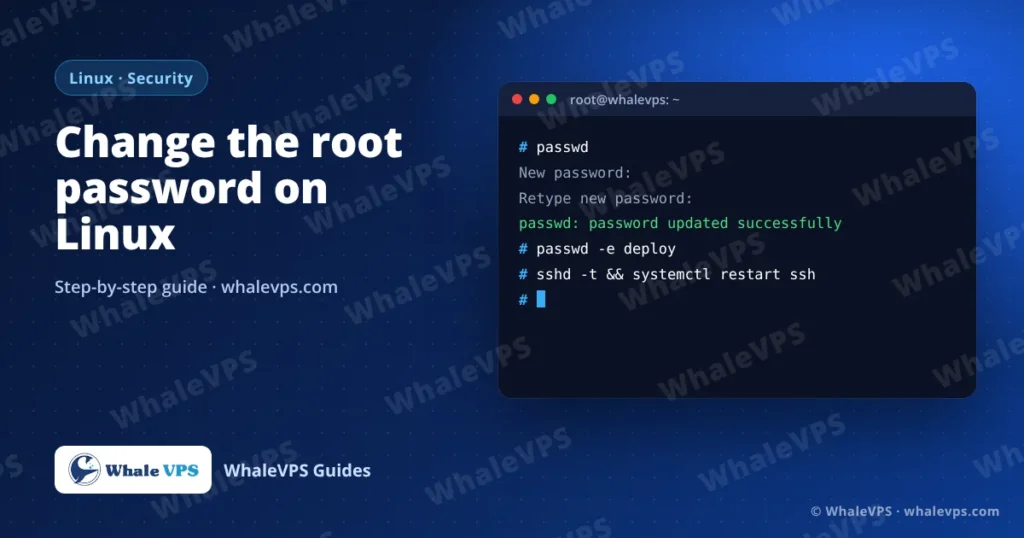
To change the root password on a Linux VPS, log in as root over SSH, type passwd, press Enter, and type the new password twice. To change another user’s password, run passwd username as root, or sudo passwd username from an account with sudo rights. The change applies immediately; your current SSH session stays open.
That covers 90% of cases. The sections below explain the variations, how to pick a password that survives brute-force attempts, and how to turn password logins off.
Change the password of the account you’re logged in as
passwdLinux asks for the new password twice. Characters don’t appear while you type. If you are not root, it first asks for your current password.
A successful change ends with:
passwd: password updated successfullyChange another user’s password (as root)
passwd deployFrom a normal account with sudo rights:
sudo passwd deployRoot doesn’t need to know the old password, which is why root access is so valuable and why it needs the strongest protection.
Change the root password from a sudo user
On Ubuntu servers where you log in as a normal user:
sudo passwd rootChange passwords without typing them in (scripts)
For automation, chpasswd reads user:password pairs:
echo 'deploy:N3w-Long-Passphrase-2026' | sudo chpasswdBe careful: the command, including the password, is saved in your shell history. Clear that line afterwards with history -d LINE_NUMBER, or put a space in front of the command if your shell is configured to ignore those.
Force a user to choose a new password at next login
Handy when you create an account for a colleague:
sudo passwd -e deployThe next time deploy logs in, Linux makes them set their own password.
What makes a good server password?
Bots try thousands of combinations per hour against any server with SSH open. Length matters more than symbols:
- At least 16 characters. Four or five random words joined with dashes work well and are easy to type.
- Unique to this server. Never reuse a password from email or another site.
- Stored in a password manager, not in a text file on your desktop.
You can generate one on the server itself:
openssl rand -base64 24The better option: disable password logins completely
With SSH keys, there’s no password to guess. Set up a key first (the steps are in how to connect to a Linux VPS with SSH), test that it works in a new terminal window, and then:
- Open the SSH configuration:
sudo nano /etc/ssh/sshd_config- Find these lines (remove a leading
#if there is one) and set:
PasswordAuthentication no
PermitRootLogin prohibit-password
On recent Ubuntu releases, files in /etc/ssh/sshd_config.d/ can override the main file. Check them too:
grep -ri passwordauthentication /etc/ssh/sshd_config.d/- Test the configuration and restart SSH:
sudo sshd -t && sudo systemctl restart sshOn AlmaLinux and Rocky Linux the service is called sshd:
sudo sshd -t && sudo systemctl restart sshdKeep your current session open and try logging in from a second window. If something is wrong, you can still fix it from the first one.
What if I forgot the root password?
If you’re still logged in somewhere, run passwd there. If you’re completely locked out, open a ticket in the WhaleVPS client area. Support can reset access through the server console without touching your data.
Frequently asked questions
Does changing the root password log out other SSH sessions?
No. Open sessions stay connected. Only new logins need the new password.
Do I need to restart the server after changing the password?
No. passwd updates /etc/shadow directly and the change is effective at once.
Will this change my control panel password?
On a cPanel server, yes: WHM’s root login uses the Linux root password. DirectAdmin is different; it logs in with its own admin account, which you change with passwd admin. More detail in our guides to installing cPanel and installing DirectAdmin.
I’m on a Windows server. How do I change the password there?
Windows uses a different process. Follow how to change your Windows VPS password over Remote Desktop.