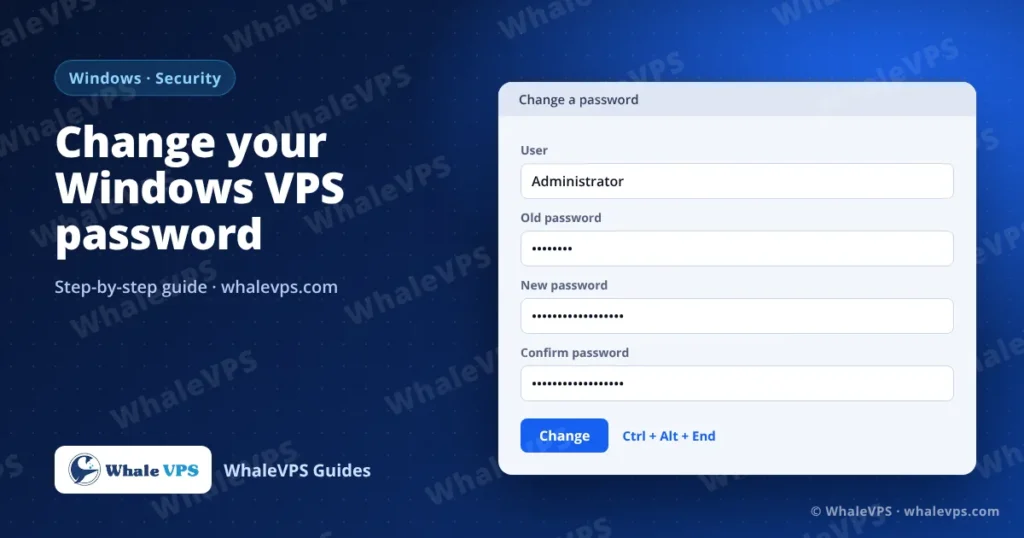
To change your Windows VPS password, connect with Remote Desktop, press Ctrl + Alt + End (not Ctrl + Alt + Del), choose Change a password, type the old password once and the new one twice, and press Enter. The new password works for the next RDP login straight away.
Ctrl + Alt + Del is caught by your own computer, so inside an RDP window you need Ctrl + Alt + End instead. If that shortcut doesn’t work on your keyboard, use one of the other three methods below.
Method 1: Ctrl + Alt + End (quickest)
- Connect to the server. If you need help, see how to connect to a Windows VPS with Remote Desktop.
- Press Ctrl + Alt + End. If the shortcut doesn’t reach the server (common on Mac keyboards), open the on-screen keyboard by searching for
oskon the server and press Ctrl + Alt + Del there, or use Method 2. - Click Change a password.
- Enter the current password, then the new password twice.
- Press Enter and click OK.
Method 2: Settings
- Open Start → Settings → Accounts → Sign-in options.
- Under Password, click Change.
- Confirm the current password, then set the new one.
On Windows Server 2016 the path is the same, though the layout looks slightly older.
Method 3: Command Prompt with net user
Open Command Prompt as Administrator and run:
net user Administrator *The asterisk makes Windows ask for the new password twice without showing it on screen. Avoid net user Administrator NewPassword: the password ends up visible in the window and in any screen recording.
Replace Administrator with another account name to change that user’s password instead.
Method 4: PowerShell
$pw = Read-Host -AsSecureString "New password"
Set-LocalUser -Name "Administrator" -Password $pw
This is the cleanest option for scripts, since the password is never stored as plain text in the command.
Password rules on Windows Server
Windows Server enforces complexity by default. A new password must:
- Be at least the minimum length set by policy (often 8 characters; longer is much safer)
- Use characters from at least three of these groups: uppercase, lowercase, digits, symbols
- Not contain the account name
If you see “The password does not meet the password policy requirements”, make it longer and add another character type. A phrase like Copper-Lantern-River-47 passes easily and is still memorable.
Use at least 16 characters. Remote Desktop on port 3389 is targeted by password-guessing bots around the clock, and a long passphrase is the single most effective defence.
After you change the password
- Update saved credentials. In
mstsc, open the connection, click Show Options → Edit under saved credentials, and enter the new password. The Windows App on Mac and mobile keeps credentials under Settings → Accounts. - Update services that run as this user. Scheduled tasks or Windows services set to run as Administrator stop working until you update their stored password (Task Scheduler → task → Properties → Change User or Group).
- Update automatic sign-in. If you set the server to log in automatically for a trading platform, as described in how to install MetaTrader on a Windows VPS, enter the new password there too.
Locked out after too many attempts?
Windows Server can lock an account after repeated failed logins. Wait for the lockout period to pass, then try again with the correct password. If you no longer know the password at all, open a ticket in the WhaleVPS client area and support will help you regain access through the console.
Frequently asked questions
Does changing the password disconnect my current RDP session?
No. Your session stays open. Only new connections ask for the new password.
Can I rename the Administrator account?
Yes, and it makes guessing harder because bots try the name “Administrator” first. Open Computer Management → Local Users and Groups → Users, right-click Administrator and choose Rename. Use the new name for future logins.
How do I change a password on a Linux VPS?
Linux uses the passwd command. See how to change the root password on Linux.
Can I order a VPS with Windows Server?
Yes. Choose Windows Server 2016, 2019 or 2022 as the operating system when you order. Popular locations for Windows workloads include England, the Netherlands and the USA.