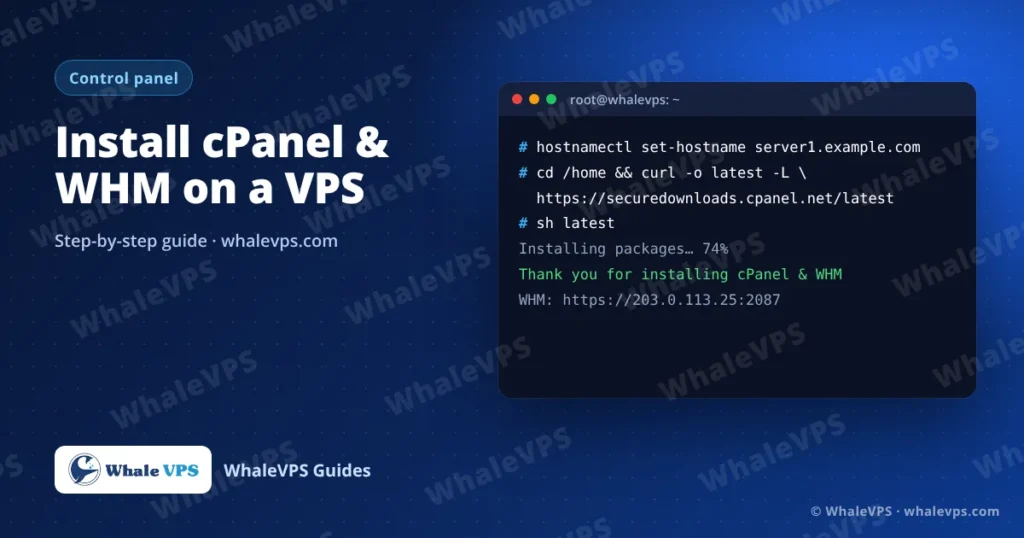
To install cPanel & WHM, start with a fresh AlmaLinux, Rocky Linux, CloudLinux or Ubuntu LTS VPS with at least 2 GB of RAM, set a fully qualified hostname, and run cPanel’s installer as root: cd /home && curl -o latest -L https://securedownloads.cpanel.net/latest && sh latest. The install takes 30 to 60 minutes. When it finishes, open https://YOUR_SERVER_IP:2087 to configure WHM.
cPanel is the panel your website owners use; WHM (WebHost Manager) is the admin side where you create those accounts. Both are installed together.
Requirements
| Item | Minimum | What we recommend |
|---|---|---|
| Operating system | AlmaLinux 8/9, Rocky Linux 8/9, CloudLinux 8/9, Ubuntu 24.04 LTS | AlmaLinux 9 |
| RAM | 2 GB | 4 GB, or more if you enable ClamAV |
| Disk | 20 GB | 40 GB or more, NVMe |
| Network | One dedicated IPv4 address | Included with every WhaleVPS plan |
| License | cPanel license tied to the server IP | A 15-day trial is available for new installs |
Two rules that cause most failed installs:
- The OS must be fresh. Don’t install Apache, MySQL, PHP or another panel first. cPanel installs and manages its own versions.
- Use a supported OS version. cPanel supports only one Ubuntu LTS at a time and changes its list over time, so check cPanel’s current system requirements before you pick an image.
If you are ordering a new server for this, choose a plan with 4 GB of RAM or more on any of our VPS locations. WhaleVPS support can also install cPanel together with the operating system for free; mention it in your order or open a ticket.
Step 1: Connect as root
Log in over SSH. If you haven’t done this before, follow how to connect to a Linux VPS with SSH.
ssh root@203.0.113.25Step 2: Set a hostname
cPanel needs a fully qualified domain name that is not your main website. A subdomain such as server1.example.com works well. Create an A record for it pointing to the VPS IP, then set it on the server:
hostnamectl set-hostname server1.example.comCheck it:
hostname -fStep 3: Update the system
On AlmaLinux or Rocky Linux:
dnf -y update && rebootOn Ubuntu:
apt update && apt -y upgrade && rebootReconnect after the reboot.
Step 4: Run the installer
cd /home && curl -o latest -L https://securedownloads.cpanel.net/latest && sh latestThe script checks the system, downloads packages and builds the stack. Expect 30 to 60 minutes. Don’t close the terminal while it runs. If your connection is unstable, start a screen session first so a dropped SSH connection doesn’t kill the install:
dnf -y install screen   # or: apt -y install screen
screen -S cpanel
Reattach later with screen -r cpanel.
When you see “Thank you for installing cPanel & WHM”, the install is done.
Step 5: First login to WHM
Open this address in your browser:
https://203.0.113.25:2087The browser warns about the certificate because no SSL is issued yet. Continue, log in as root with the root password, and work through the setup wizard:
- Accept the license agreement.
- Enter a contact email for server alerts.
- Set the nameservers (for example
ns1.example.comandns2.example.com) if this server will host DNS.
First settings worth changing
- Server Configuration → Basic WebHost Manager Setup: check the contact email and the default IP.
- Service Configuration → Apache Configuration: leave the defaults until you know what you need.
- Software → MultiPHP Manager: pick the PHP version for new accounts.
- Security Center → cPHulk Brute Force Protection: turn it on to block repeated failed logins.
- SSL/TLS → Manage AutoSSL: enable AutoSSL so every domain gets a free certificate.
Then create your first account in Account Functions → Create a New Account. The new user logs in to cPanel at https://YOUR_IP:2083.
Ports cPanel uses
| Port | Service |
|---|---|
| 2087 | WHM (HTTPS) |
| 2083 | cPanel (HTTPS) |
| 2096 | Webmail (HTTPS) |
| 80 / 443 | Websites |
| 25, 465, 587, 993, 995 | |
| 53 | DNS |
If you use an external firewall, open these before testing.
Frequently asked questions
How long does a cPanel install take?
Usually 30 to 60 minutes on a VPS with NVMe storage. Slow installs are almost always caused by a lack of RAM.
Can I install cPanel on a server that already has websites?
No. cPanel must be installed on a clean OS. Back up your sites, reinstall the operating system from the client area, then install cPanel and restore.
Is there a free alternative?
DirectAdmin is a lighter commercial panel that runs well on smaller servers. See how to install DirectAdmin on a VPS.
Can I change the root password after installing cPanel?
Yes, either in WHM under Server Configuration → Change Root Password or from the shell, as shown in our guide to changing a Linux root password.