To connect to a Linux VPS with SSH, open a terminal and run ssh root@YOUR_SERVER_IP, accept the server fingerprint the first time, and enter the root password from your WhaleVPS client area. Windows 10 and 11, macOS and every Linux desktop already include an SSH client, so you don’t need to install anything.
The rest of this guide covers each operating system, the first-login prompt that confuses most people, and how to replace the password with an SSH key.
What you need before you start
Three pieces of information, all listed under Services → My Services in the WhaleVPS client area:
- The server’s IP address, for example
203.0.113.25 - The username, which is
rooton a fresh Linux VPS - The root password
SSH listens on port 22 unless you changed it. If you did, add -p PORT to every command below.
How do I connect from Windows 10 or 11?
Windows has shipped the OpenSSH client since the April 2018 update, so PowerShell can do this on its own.
- Press Win + X and choose Terminal (or Windows PowerShell on older builds).
- Type the command below and press Enter:
ssh root@203.0.113.25- Type
yeswhen asked about the host fingerprint (explained below). - Paste the password with a right-click and press Enter. Nothing appears while you type or paste. That is normal.
If PowerShell answers ssh is not recognized, open Settings → System → Optional features, add OpenSSH Client, and open a new terminal window.
Prefer a graphical client? PuTTY works the same way: put the IP in Host Name, keep port 22, click Open, then log in as root.
How do I connect from macOS or Linux?
Open Terminal (on macOS it is in Applications → Utilities) and run the same command:
ssh root@203.0.113.25On a custom port:
ssh -p 2200 root@203.0.113.25What does “authenticity of host can’t be established” mean?
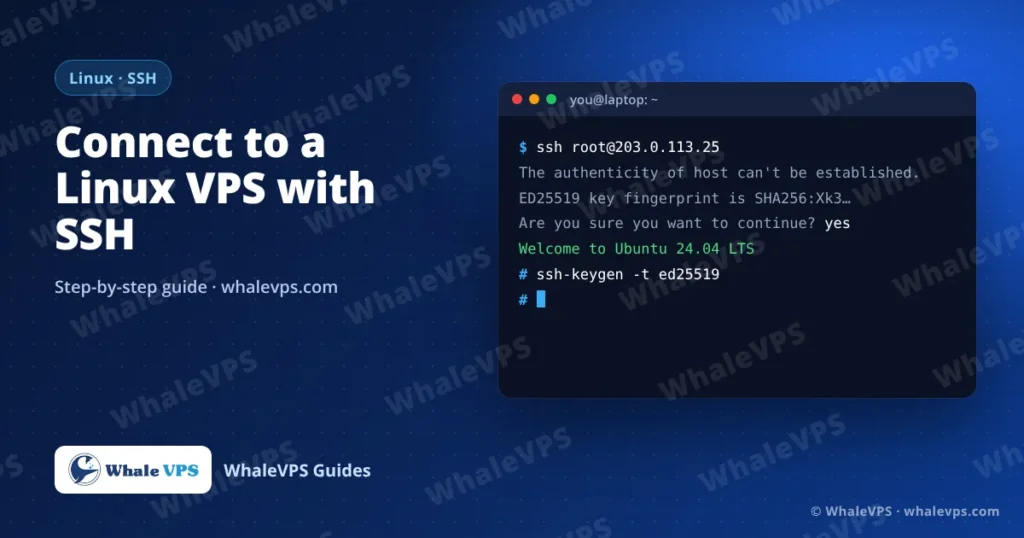
The first time you connect, SSH shows something like this:
The authenticity of host '203.0.113.25' can't be established.
ED25519 key fingerprint is SHA256:Xk3...
Are you sure you want to continue connecting (yes/no/[fingerprint])?
Your computer has never seen this server, so it asks you to confirm its identity. Type yes. SSH saves the fingerprint in ~/.ssh/known_hosts and checks it on every later login.
If the warning comes back later as REMOTE HOST IDENTIFICATION HAS CHANGED, the server’s key is different from the one you saved. After you reinstall the operating system this is expected. Remove the old entry and connect again:
ssh-keygen -R 203.0.113.25If you did not reinstall anything, stop and contact WhaleVPS support before you continue.
How do I log in with an SSH key instead of a password?
A key is far harder to guess than a password and saves you typing it every time. It takes two commands.
1. Create a key pair on your own computer (not on the server):
ssh-keygen -t ed25519 -C "my-laptop"Press Enter to accept the default location. A passphrase is optional but recommended. You now have a private key (~/.ssh/id_ed25519, never share it) and a public key (~/.ssh/id_ed25519.pub).
2. Copy the public key to the VPS. On macOS and Linux:
ssh-copy-id root@203.0.113.25Windows doesn’t include ssh-copy-id, so use this PowerShell line instead:
type $env:USERPROFILE\.ssh\id_ed25519.pub | ssh root@203.0.113.25 "mkdir -p ~/.ssh && chmod 700 ~/.ssh && cat >> ~/.ssh/authorized_keys && chmod 600 ~/.ssh/authorized_keys"Run ssh root@203.0.113.25 again. If it logs you in without asking for the server password, the key works. Once you have confirmed that, you can turn off password logins completely, as described in our guide to changing the root password on Linux.
Common SSH errors and how to fix them
| Error | Usual cause | Fix |
|---|---|---|
Connection timed out | Wrong IP, server is off, or a firewall drops port 22 | Check the IP and that the VPS is running in the client area; check firewall rules |
Connection refused | Nothing is listening on that port | SSH may run on a different port, or the SSH service stopped; use the console to run systemctl start ssh (or sshd on AlmaLinux) |
Permission denied (publickey,password) | Wrong password or username | Copy the password again without extra spaces; the user is root unless you created another |
Permission denied (publickey) | Password login is disabled | Log in with the key you set up, or re-enable passwords from the console |
Host key verification failed | The server key changed | Run ssh-keygen -R YOUR_IP after a reinstall |
Keep the session tidy
- Run
exitor press Ctrl + D to log out. - Long jobs stop when the connection drops. Start them inside
tmuxorscreenso they keep running. - To copy files, use
scp file.zip root@203.0.113.25:/root/or a graphical tool such as WinSCP or FileZilla in SFTP mode.
Frequently asked questions
What is the default SSH port on a WhaleVPS server?
Port 22. You can move it to another port in /etc/ssh/sshd_config, but open the new port in your firewall first or you will lock yourself out.
Can I use SSH to connect to a Windows VPS?
Windows servers are normally managed with Remote Desktop. Follow our guide on connecting to a Windows VPS with Remote Desktop.
Is it safe to log in as root?
It is fine for initial setup. For daily work, create a normal user with adduser and sudo rights, use SSH keys, and disable password logins.
Where is my VPS located, and does it matter for SSH?
Latency affects how responsive the terminal feels. A server close to you, such as a Germany VPS for Europe or a USA VPS for North America, makes typing feel instant.