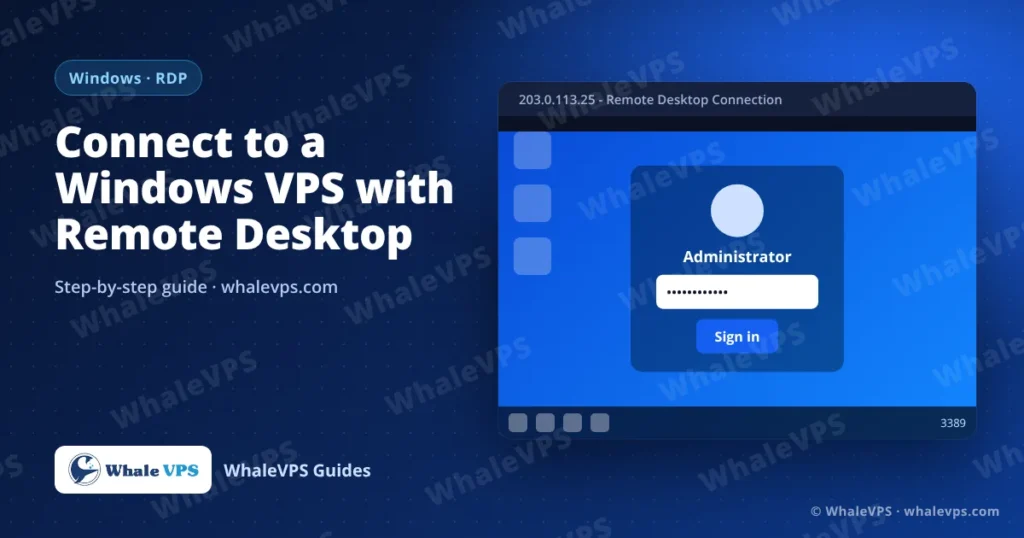
To connect to a Windows VPS, open Remote Desktop Connection (mstsc), enter the server’s IP address, log in as Administrator with the password from your WhaleVPS client area, and accept the certificate warning. On a Mac, iPhone, iPad or Android device, the same thing is done with Microsoft’s free Windows App.
Remote Desktop uses the RDP protocol on TCP port 3389. The steps below cover every common device, plus file transfer and the errors that stop a connection.
What you need
Open Services → My Services in the WhaleVPS client area and note:
- The IP address of the VPS
- The username, normally Administrator
- The password
Connecting from Windows 10 or 11
- Press Win + R, type
mstscand press Enter. - In Computer, type the IP address. If RDP runs on a custom port, add it after a colon:
203.0.113.25:3390. - Click Show Options and fill in User name as
Administratorif you want Windows to remember it. - Click Connect and enter the password.
- A certificate warning appears because the server uses a self-signed certificate. Tick Don’t ask me again for connections to this computer and click Yes.
After a few seconds the server desktop opens. Full screen is the default; press Ctrl + Alt + Break to switch between full screen and a window.
Connecting from a Mac
- Install Windows App from the Mac App Store. It replaced the older “Microsoft Remote Desktop” app in 2024.
- Click + → Add PC.
- Enter the IP address in PC name.
- Under Credentials, add
Administratorand the password, then save. - Double-click the new tile and choose Continue at the certificate prompt.
Connecting from iPhone, iPad or Android
Install Windows App from the App Store or Google Play, tap + → Add PC, type the IP, and connect with the same username and password. A Bluetooth keyboard and mouse make a big difference on a phone.
Connecting from Linux
Remmina is preinstalled on many desktops, or available from your package manager:
sudo apt install remmina remmina-plugin-rdpCreate a new connection, choose RDP, enter the IP, username and password, and connect. From the terminal, FreeRDP does the same job:
xfreerdp /v:203.0.113.25 /u:Administrator /dynamic-resolutionHow do I copy files to my Windows VPS?
The simplest way is to share a local drive with the session:
- In
mstsc, click Show Options → Local Resources → More… - Tick Drives (or one specific drive) and connect.
- On the server, open File Explorer → This PC. Your drive shows up as “C on YOUR-PC”. Copy files from there.
Copy and paste of single files also works when Clipboard is ticked under Local Resources. For files larger than a few hundred megabytes, a download link opened in the server’s browser is usually faster than RDP.
Disconnect or sign out?
They do different things, and it matters if you run programs on the server:
- Close the RDP window (X) or choose Disconnect: your session stays alive. Programs keep running. This is what you want for trading terminals, bots or long downloads.
- Start → Sign out: the session ends and every program you opened closes.
If you run trading platforms, read how to install MetaTrader on a Windows VPS for the settings that keep it running after a reboot.
Fixing common Remote Desktop errors
| Message | What it usually means | What to do |
|---|---|---|
| “Remote Desktop can’t connect to the remote computer” | Wrong IP, server stopped, or port blocked | Check the IP and server status in the client area; try again after a reboot |
| “The credentials that were used to connect did not work” | Wrong password or username | Use Administrator; type the password manually instead of pasting it |
| “An authentication error has occurred” | Network Level Authentication mismatch | Update your RDP client; ask WhaleVPS support to check the NLA setting |
| “Your account is locked out” | Too many failed attempts | Wait for the lockout timer to expire or contact support |
| Black screen after login | Display driver or session stuck | Press Ctrl + Alt + End and choose Sign out, then reconnect |
Keep RDP secure
Port 3389 is scanned constantly by bots trying common passwords. Three settings reduce the risk a lot:
- Use a long, unique password. Our guide shows how to change the Windows VPS password.
- In Windows Defender Firewall → Advanced settings → Inbound rules, limit the Remote Desktop rules to your own IP address if it is static.
- Keep Windows Update enabled so RDP security fixes are installed.
Frequently asked questions
What is the default username on a WhaleVPS Windows server?
Administrator. You can create extra users under Computer Management → Local Users and Groups and add them to the Remote Desktop Users group.
How many people can use Remote Desktop at the same time?
Windows Server allows two simultaneous administrative sessions without extra licensing. More concurrent users need Remote Desktop Services client access licenses (RDS CALs).
Which location gives the smoothest RDP session?
The closer the server is to you, the less input lag you feel. Check the latency to a few locations, such as a Netherlands VPS or a Turkey VPS, before you order.
Can I use Remote Desktop on a Linux VPS?
Linux servers are managed with SSH. See how to connect to a Linux VPS with SSH.