To run MetaTrader on a Windows VPS, connect with Remote Desktop, download the MT4 or MT5 installer from your broker’s website inside the VPS, install it, log in with your trading account, and attach your Expert Advisors. When you’re done, close the Remote Desktop window instead of signing out, so the terminal keeps running.
A VPS solves the two problems of running EAs at home: your computer has to stay on, and every network hiccup can miss a trade. A server in a datacenter runs around the clock on a stable connection, often much closer to your broker’s servers.
What size VPS do you need?
MetaTrader is light, but Windows Server is not. As a practical guide:
| Your setup | vCPU | RAM |
|---|---|---|
| 1 to 2 terminals, a few EAs | 2 | 4 GB |
| 3 to 5 terminals | 4 | 8 GB |
| Many terminals or heavy backtesting | 8 or more | 16 GB or more |
Backtests in the Strategy Tester use far more CPU than live trading. If you run optimizations on the VPS, size up.
Which server location gives the lowest latency?
Latency to the broker’s trade server is what matters, not latency to you. Many brokers run their servers in London, New York or Frankfurt, but some use Asian or other locations. Ask your broker, or check the server name in your account details.
Matching WhaleVPS locations:
- London area: England VPS
- Frankfurt area: Germany VPS
- New York area: USA VPS
- Asia: Japan VPS or Hong Kong VPS
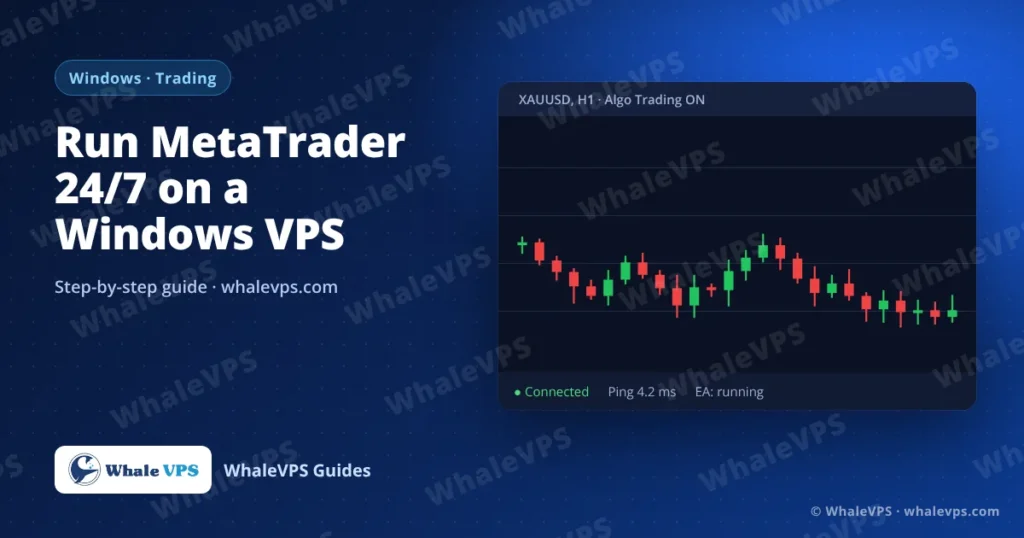
After installing, MetaTrader shows the ping to your broker in the bottom-right corner of the window. Single-digit milliseconds is excellent; below 30 ms is good for most strategies.
Step 1: Connect to the VPS
Order a VPS with Windows Server and connect over Remote Desktop. Our step-by-step guide covers Windows, Mac and mobile: connect to a Windows VPS with Remote Desktop.
Step 2: Download MetaTrader inside the VPS
Open the browser on the VPS (not on your own computer) and download the installer from your broker’s website. Brokers ship a version that already contains their server list, which saves you searching for the right server later. If your broker doesn’t offer a download, use the installer from the official MetaTrader website.
Avoid installers from file-sharing sites or forums. A modified terminal can steal account credentials.
Step 3: Install and log in
- Run the installer and keep the default folder unless you plan to run several copies (see below).
- When the terminal opens, choose File → Login to Trade Account.
- Enter your account number, password and select the correct server.
- Check the connection indicator in the status bar. It should show a ping value, not “No connection”.
Step 4: Add your Expert Advisors
- In MetaTrader, open File → Open Data Folder.
- Copy your EA files into
MQL4\Experts(MT4) orMQL5\Experts(MT5). Indicators go into theIndicatorsfolder. - To copy files from your PC, share a local drive in Remote Desktop (Show Options → Local Resources → More → Drives).
- Back in MetaTrader, right-click Expert Advisors in the Navigator and choose Refresh.
- Drag the EA onto a chart, then enable Algo Trading (MT5) or AutoTrading (MT4) on the toolbar.
Step 5: Keep it running when you leave
This is where most problems start.
- Close the RDP window with the X. The session stays alive and MetaTrader keeps trading.
- Do not choose Start → Sign out. Signing out closes every program, including MetaTrader.
Start MetaTrader automatically after a reboot
Windows installs updates and sometimes restarts. To bring MetaTrader back by itself:
- Press Win + R, type
shell:startupand press Enter. - Copy the MetaTrader shortcut from the desktop into that folder.
- Programs in the Startup folder only launch after someone signs in. Microsoft’s free Autologon tool (part of Sysinternals) signs the account in automatically after a restart. Run it, enter the Administrator password, and click Enable.
Autologon stores the password encrypted, but anyone with physical console access could reach the desktop. On a VPS, that console is only available through your client area and WhaleVPS support.
Control when Windows restarts
Open Settings → Windows Update → Advanced options and set active hours that cover your trading session, so updates restart the server when markets are quiet, such as the weekend.
Running several MetaTrader terminals
Install each copy into its own folder, for example C:\MT5-AccountA and C:\MT5-AccountB. Each folder keeps its own settings and EAs, and you can run them at the same time on different accounts.
Frequently asked questions
Does MetaTrader keep running if I turn off my own computer?
Yes. The terminal runs on the VPS. Your computer only shows the screen while you’re connected.
MT4 or MT5?
Use the platform your broker and your EA support. MT5 handles multiple threads in the Strategy Tester and has more order types; many older EAs exist only for MT4.
Is my trading password safe on a VPS?
The VPS is yours alone, protected by your Remote Desktop password. Use a long, unique password, and change it as described in how to change your Windows VPS password.
Why does my EA stop at the weekend?
Most markets are closed from Friday evening to Sunday evening, so EAs have nothing to trade. That is normal and not a server problem.